
How to Make a Calculator for Your Website: 5 Tools to Get Started in Minutes
ebsites today succeed not just by showing information but by letting users play with it. Visitors want to see how your product or service applies to their specific situation – not just read about it. That’s why interactive calculators have become one of the most practical ways to turn curiosity into real engagement.
Think about it: when someone can instantly estimate project costs, savings, or results, they stop being a passive visitor and start becoming a participant. Instead of clicking away, they explore. Instead of guessing, they calculate. This subtle shift often doubles the time people spend on a page and drastically improves lead quality.
Here are a few examples of how businesses use calculators effectively:
- A marketing agency helps clients forecast campaign ROI before they even book a call.
- A small bakery lets customers build their own cake and get a price estimate on the spot.
- A yoga studio shows how much members could save with monthly passes versus drop-ins.
- A finance coach turns a simple “budget planner” into a lead magnet that collects emails.
The key takeaway? An on-site calculator isn’t just a fancy widget – it’s a conversation tool. It connects your offer with real user needs, guiding them naturally toward a decision. And with today’s no-code builders, adding one to your website takes minutes, not weeks of coding.
Key Steps Before You Build
Before jumping into any calculator builder, it’s worth mapping out what you actually need it to do. A little planning goes a long way – it helps you pick the right platform, avoid messy logic later, and design a calculator that feels like a natural part of your website.
Here’s what to think through first:
- Define your goal. What problem should your calculator solve? Is it meant to estimate a service price, measure savings, collect leads, or engage users with a quiz? Clear intent helps you choose between a simple form-style setup or a logic-heavy tool.
- Sketch the calculation flow. Write down what users will input (numbers, choices, sliders) and what results they’ll see. Even a rough outline on paper – “User enters budget → calculator shows number of possible options” – helps you structure logic correctly once you start building.
- Match the design to your website. Consistency matters. Use similar colors, typography, and button styles so the calculator blends into your brand instead of looking like an external widget. The best tools let you adjust every visual element to fit your site seamlessly.
- Plan data handling and integrations. Decide where submissions or results will go: email, CRM, Google Sheets, or a marketing automation platform. Most modern builders offer one-click integrations, but it’s easier when you know what you need beforehand.
Taking these steps early makes the actual setup process much smoother. Once your structure and goals are clear, all that’s left is choosing the right tool – and in 2025, there are three standout options worth your attention.
The Best No-Code Calculator Builders in 2026
Below, we’ve expanded the list to five tools — because the right choice depends heavily on what kind of experience you’re building, and no single platform wins in every situation.
There’s no shortage of tools that promise to “make a calculator in minutes,” but only a few actually deliver a smooth, flexible and design-friendly experience. Below are three builders that balance simplicity, customization, and business practicality.
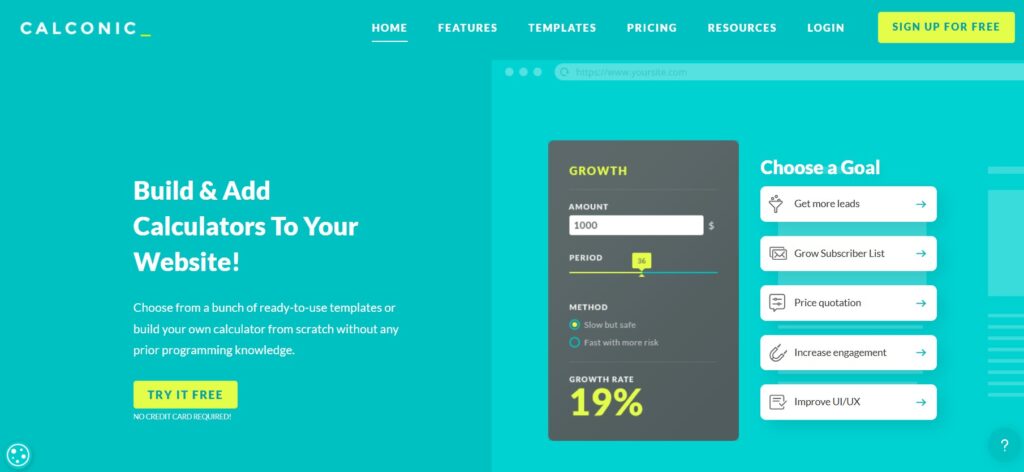
For users who want deeper logic and full control over the look and feel, CALCONIC strikes the perfect balance between design freedom and precision. It’s not just a calculator builder – it’s a mini marketing tool that can guide visitors step by step toward a conversion.
Unlike entry-level platforms, CALCONIC lets you build multi-step calculators with conditional logic. This means your form can change dynamically based on user choices – perfect for complex pricing models or guided quizzes. For example, if someone selects a “premium” plan, you can automatically reveal additional fields or features tied to that option.
Another strength of CALCONIC is its design flexibility. You can customize everything: layout, spacing, fonts and color schemes. The editor gives you granular control over each element, which makes it easy to create calculators that match your brand aesthetic perfectly.
From a marketing perspective, CALCONIC goes beyond simple inputs and outputs. It includes:
- Lead capture fields to collect emails or phone numbers right inside the calculator.
- Embeddable pop-ups and floating widgets for promotional campaigns.
- E-commerce integrations that connect your calculator directly to Shopify or WooCommerce, turning price estimations into instant product configurations or checkout flows.
Example Use Case: A custom furniture maker uses CALCONIC to create a multi-step “Build Your Table” calculator. Visitors choose wood type, size and finish, see the total price update in real time and then send the configuration straight to checkout – no manual quoting required.
CALCONIC is ideal if you want a calculator that does more than calculate – it sells, collects leads and enhances brand presentation all in one.

If you want to build a calculator fast – and make it look good – uCalc is the easiest place to start. Its clean drag-and-drop interface feels closer to a page builder than a math tool: you simply stack blocks, tweak styles, and publish.
uCalc’s biggest advantage is its library of ready-made templates. Whether you’re creating a mortgage estimator, appointment cost calculator, or calorie tracker, most of the logic is already there – you just edit the wording, formulas, and design.
Once built, you can embed your calculator anywhere: WordPress, Squarespace, Shopify, or even a standalone landing page. Each widget automatically adapts to your site layout, so you don’t need to touch a single line of code.
Behind the scenes, uCalc also handles the technical parts:
- Email and Google Sheets integration for collecting results or lead data.
- Built-in analytics dashboard to track how often users interact with your calculator.
- Custom design options for colors, buttons, and typography, so the widget feels native to your website.
Example Use Case: A local cleaning service creates a “Cost per Room” calculator with sliders for apartment size and add-on options. Once visitors see an instant estimate, they can leave their contact details – and the owner receives every submission in Google Sheets automatically.
Simple, visual and beginner-friendly, uCalc is a great pick for anyone who wants a calculator live on their site the same day they start building.

If you’re looking for something that feels more like a conversation than a spreadsheet, stepFORM is the tool to try. It combines the logic of a calculator with the flow of an interactive form, making every user interaction feel personal and engaging.
Unlike traditional static widgets, stepFORM uses a step-by-step interface that gently walks visitors through questions, choices, or sliders. Each screen can include text, images, or animations – so the experience feels more like chatting with your brand than filling out a form.
That’s what makes it perfect for lead generation and interactive marketing campaigns. You can calculate prices or scores while collecting user data, all wrapped in an elegant animated flow that keeps visitors moving forward.
Here’s what sets stepFORM apart:
- Real-time preview while building – see your changes instantly as you edit.
- Flexible data routing to send results to email, CRM systems, or webhooks.
- Stripe integration for accepting payments directly within your form.
- Animated transitions and custom backgrounds to match your website’s tone.
Example Use Case: A wedding photographer creates a “Plan Your Package” form in stepFORM. Couples pick event type, number of hours and photo style – each on its own screen with smooth animations. The calculator totals the estimated cost and lets users confirm a booking with a small deposit via Stripe.
stepFORM is best suited for brands that want interaction with a touch of storytelling – a way to not only calculate but connect.

Most calculator builders are built around a single premise: user enters numbers, user sees a result. Outgrow starts from a different question — what if the calculator itself were a marketing campaign?
Where CALCONIC and uCalc focus on clean embeds and formula accuracy, Outgrow is designed around the full content marketing lifecycle. You build a calculator, but you’re simultaneously building a lead funnel, an analytics pipeline, and a piece of content that can be promoted, shared, and measured like any other campaign asset. The result is a platform that feels less like a widget builder and more like a tool a growth team would own.
The builder covers the same ground as its competitors — sliders, inputs, dropdowns, conditional logic, email gates — but wraps it in a layer of marketing infrastructure that the others don’t offer at the same depth. You get A/B testing between different calculator versions, traffic source attribution, per-respondent engagement scoring, and a native integration with most major CRMs including HubSpot, Salesforce, and Marketo. For B2B companies or agencies running calculators as part of a broader demand generation strategy, those connections matter.
Outgrow also supports content types beyond pure calculators: assessments, quizzes, recommendation engines, and polls live in the same builder. This means a single platform can cover your ROI calculator, your “which service is right for me” quiz, and your post-event NPS survey — instead of three separate tools.
The trade-off is cost. Outgrow’s free plan is limited to a handful of interactions per month, and meaningful usage starts at around $22–$45/month depending on the tier. It’s the most expensive entry point in this list — but for teams that are already spending on marketing automation and want their interactive content to plug directly into that stack, the overlap justifies it.
Example Use Case: A B2B SaaS company builds a “Cost of Manual Processes” calculator in Outgrow. A visitor enters team size and hours spent on a task — and sees a dollar figure representing what inefficiency costs them per year. The result screen includes a CTA to book a demo, and the lead is pushed automatically to HubSpot with the calculated value attached as a contact property. The sales team sees exactly what number moved each prospect before the first call.
Outgrow is the right call when your calculator needs to behave like a marketing asset — trackable, attributable, and connected to the rest of your growth infrastructure from day one.
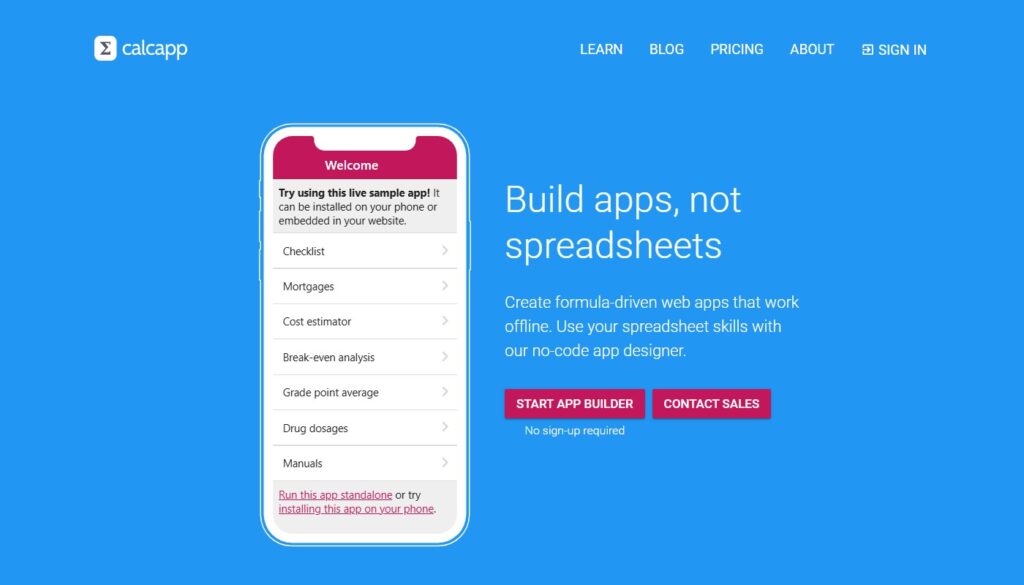
Every tool in this list produces something that looks like a web widget. Calcapp produces something that looks like an app.
That’s not just a visual distinction. When users open a Calcapp calculator on their phone, the experience matches what they expect from a native mobile application — clean screen layouts, tap-friendly controls, smooth navigation between sections, and no visible browser chrome getting in the way. For businesses where a significant share of traffic comes from mobile — local services, food and beverage, fitness, events — this difference in perceived quality shows up in completion rates.
The builder works around a spreadsheet-style formula system at its core, which makes it capable of handling genuinely complex calculations: multi-variable formulas, chained dependencies between fields, and conditional outputs that change based on combinations of inputs rather than just single values. If you’ve ever tried to build a detailed pricing calculator and found that simpler tools couldn’t quite hold the logic you needed, Calcapp is worth testing.
Where it steps back from some competitors is in marketing features. There’s no built-in A/B testing, no native CRM sync, and the lead capture mechanism is straightforward rather than sophisticated. The focus is squarely on making the calculation experience excellent — particularly on mobile — rather than on building a full funnel around it.
Calcapp offers a free plan that covers personal and small-scale use, with paid plans starting at around $19/month for commercial use, custom branding, and increased usage limits. It’s also one of the few tools in this space that lets you publish your calculator as a standalone web app with its own URL — not just an embedded widget — which opens up distribution options like direct linking from social profiles or Google Business listings.
Example Use Case: A personal trainer builds a detailed workout load calculator in Calcapp — inputs include body weight, training age, exercise selection, and weekly frequency, with outputs showing recommended sets, rep ranges, and recovery time. The calculator lives at its own URL, gets linked from the trainer’s Instagram bio, and loads as a clean app experience on every phone that opens it. Clients use it between sessions without ever realizing it wasn’t built by a developer.
Calcapp earns its place on this list specifically for mobile-heavy use cases and for anyone whose calculation logic is complex enough that the simpler builders start to feel constraining.
Embedding Your Calculator: A Quick Overview
Once your calculator looks and works the way you want, publishing it is the easiest part. All five platforms – uCalc, CALCONIC, stepFORM, Outgrow and Calcapp – provide ready-to-use embed codes that fit any website builder or CMS. You don’t need a developer or FTP access; a few clicks are enough.
Here’s how it usually goes:
Step 1: Build your calculator inside the platform and hit Publish.
Step 2: The system generates a short HTML embed code (or a unique link) – it’s similar to how you’d embed a YouTube video.
Step 3: Copy and paste that snippet into your website’s editor: in WordPress, add it inside a “Custom HTML” block; in Squarespace or Wix, use the “Embed” or “Code” element; in Shopify, drop it into a section of your page template.
Step 4: Save and preview your page – the calculator appears instantly, responsive and interactive on all devices.
In less than five minutes, your interactive calculator can go live, fully functional and collecting real user data right on your site.
If your website is designed with a clear conversion path, adding an interactive calculator can make that path much stronger. A calculator should not sit on the page as a random extra feature. It works best when it is connected to a specific business goal: helping visitors estimate a price, compare options, understand potential savings, calculate project scope, or decide which service package fits their needs. When placed near service descriptions, pricing explanations, or contact forms, it can turn passive browsing into a more active decision-making process.
The most effective calculators are simple, focused, and easy to understand. They do not need to include every possible variable or advanced formula. In many cases, a short calculator with a few clear fields is enough to give visitors a useful first estimate and encourage them to take the next step. For a business website, this means the calculator becomes more than a widget — it becomes part of the sales logic, helping users move from curiosity to action.
Final Thoughts
Five tools, five genuinely different answers to the same question — and the right choice isn’t about which one is “best.” It’s about which one fits the job you’re actually trying to do.
uCalc is still the fastest path from zero to live. If you need a calculator on your site today and don’t want to spend the afternoon learning a new interface, nothing beats its template library and drag-and-drop simplicity. It handles lead capture, Google Sheets integration, and brand customization without demanding much in return.
CALCONIC is where you go when the calculator needs to look like it was designed rather than assembled. Granular style controls, conditional logic, and e-commerce integrations make it the natural choice for creative agencies, furniture makers, configurators, or anyone whose calculator needs to carry the same visual weight as the rest of their site.
stepFORM is the conversational option — best when you want interaction to feel like a dialogue rather than a form. The animated step-by-step flow consistently outperforms static widgets in engagement metrics, particularly for lead generation campaigns where keeping users moving matters more than showing them everything at once.
Outgrow steps in when the calculator is part of a broader marketing operation. If you need CRM sync, A/B testing, lead scoring, and campaign attribution built into the same tool that runs your interactive content, Outgrow is the only platform here that delivers all of that natively.
Calcapp fills the gap for mobile-first experiences and complex formulas. When your calculator needs to work like an app — not just look okay on a phone — and when the underlying logic is sophisticated enough to strain simpler builders, Calcapp handles both without compromise.
Start with the use case, not the feature list. A bakery pricing tool and a B2B ROI estimator are both calculators — but they need completely different platforms to reach their potential. Pick the tool that matches what you’re building, get it live, and let real user behavior tell you what to improve next. The best calculator you can have is one that’s actually on your site.